Chat
All models can take advantage of the chat tab.
This tab enables you to create and pass in a list of chat messages that are directly passed into the model call. It can be used on its own or in conjunction with the text and image tabs. Using this ability gives you greater flexibility and control over the exact content sent to the model call.
For OpenAI, Azure OpenAI, Anthropic, Foundry Anthropic, and Google connectors, runtime progress is now incremental. Assistant text, visible reasoning, tool-call lifecycle events, and tool-call results are all published through stream events while the node is still running. Assistant, reasoning, and tool-call summary entries are also published through information updates for the trace viewer.
ChatMessage
Model calls pass in a list of ChatMessage instances. By default, a new empty list of ChatMessage is created. If you specify content in the text tab, then the instructions and prompt are turned into chat messages and added to the list. If you specify image context via the image tab, then those images are turned into chat messages and appended to the list.
Input messages
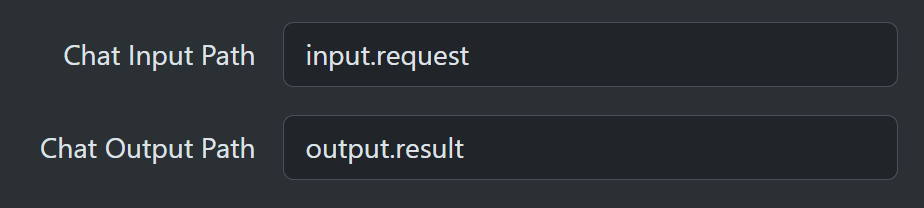
Use the Chat Input Path to specify a ChatMessage instance or a list of ChatMessage entries to initialize the content. After this, it adds instructions, prompts, and images if they are defined in the text and/or image tabs. You can leave the text and image tabs blank so that only the path-defined content is used.
For example, the following Code node creates system instructions, user prompt and an image.
  var list = new ContextList();

  // Add system instructions
  list.Add(new ChatMessage(ChatRole.System,
    [new TextContent("Use a greeting to respond and append the current time.")]));

  // Add user prompt
  list.Add(new ChatMessage(ChatRole.User,
    [new TextContent("Describe the content of the attached image.")]));

  // Get services from workflow-scoped service provider
  var repositoryService = ServiceProvider.GetRequiredService<IRepositoryService>();
  var assetStoreService = ServiceProvider.GetRequiredService<IAssetStore>();

  // Get AssetRef for a named library asset
  var assetRef = await repositoryService.GetLibraryAssetByName("headshot.png");

  // Get a byte stream for the asset
  using(var stream = await assetStoreService.OpenReadAsync(assetRef.StorageKey))
  {
    // Load the bytes into a memory buffer
    using var buffer = new MemoryStream();
    await stream.CopyToAsync(buffer);

    // Images are specified as DataContent with the correct media type
    var content = new DataContent(buffer.ToArray(), assetRef.MediaType) { Name = assetRef.Name };
    list.Add(new ChatMessage(ChatRole.User, [content]));

    // Put all the messages into the context so it can be used by the model call
    Context.Set<ContextList>("input.request", list);
}
This is then referenced by the Chat Input Path.
Output messages
If defined, the Chat Output Path specifies the context location to output the full message history. This includes portable versions of the original entries sent to the model along with portable replies from the model. For example, the output from the above example is six message entries.
When Chat Output Path is input.chat, the Model Call node creates or replaces that chat history with the full model transcript for downstream nodes and later conversation turns.
This is the normal way a conversation workflow turns the current prompt from agent.latestUserMessage.content into a durable user ChatMessage.
Reading Chat Input Path alone does not mutate input.chat; only writing Chat Output Path does.
In batch output mode, the returned model messages are the canonical transcript written to Chat Output Path. Stream events are generated from that transcript for UI display, but they are not the source of persisted chat history.
When writing Chat Output Path, SharpOMatic removes reasoning and provider-specific tool content so later model calls can replay the history across different providers.
Assistant text is stored as assistant messages.
Tool results are stored as assistant messages such as Result of calling tool lookup_weather with arguments {"city":"Sydney"} = Sunny, or Result of calling tool get_time with no arguments = Noon.
If Drop Tool Calls is enabled on the Details tab, model tool calls and tool results are omitted from Chat Output Path instead.
The next model call receives only user and assistant messages from this stored history.
The first three are the ones we sent to the model.
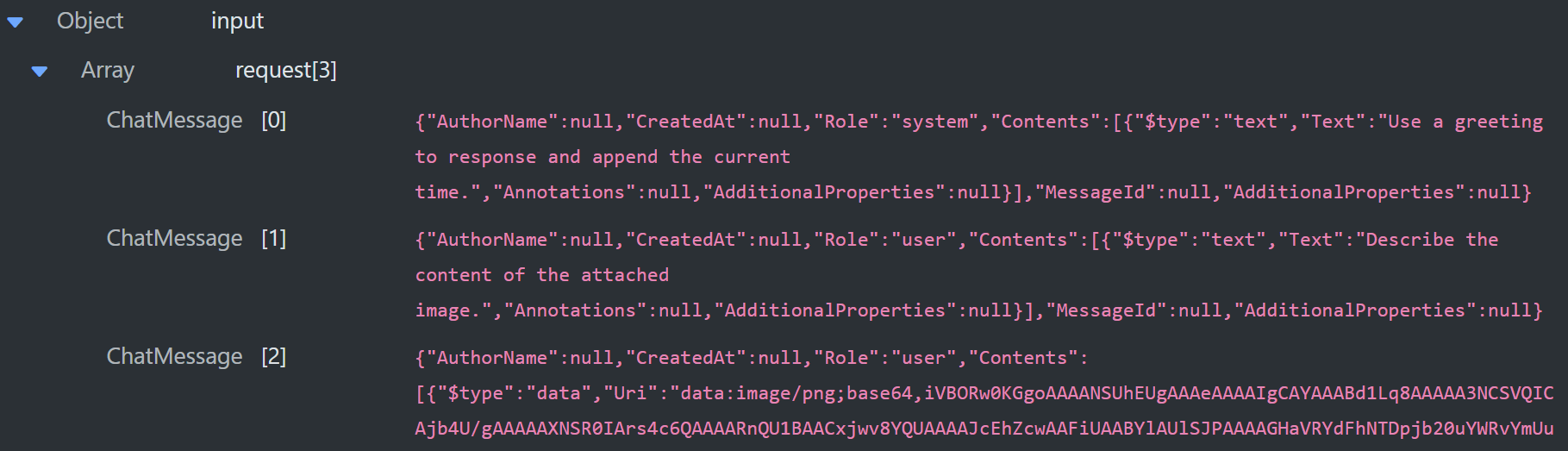
message[0] is the system instructions.
message[1] is the user prompt.
message[2] encodes the image as a base64 string, (only 2 data lines shown for brevity).
The next 3 are replies from the model.
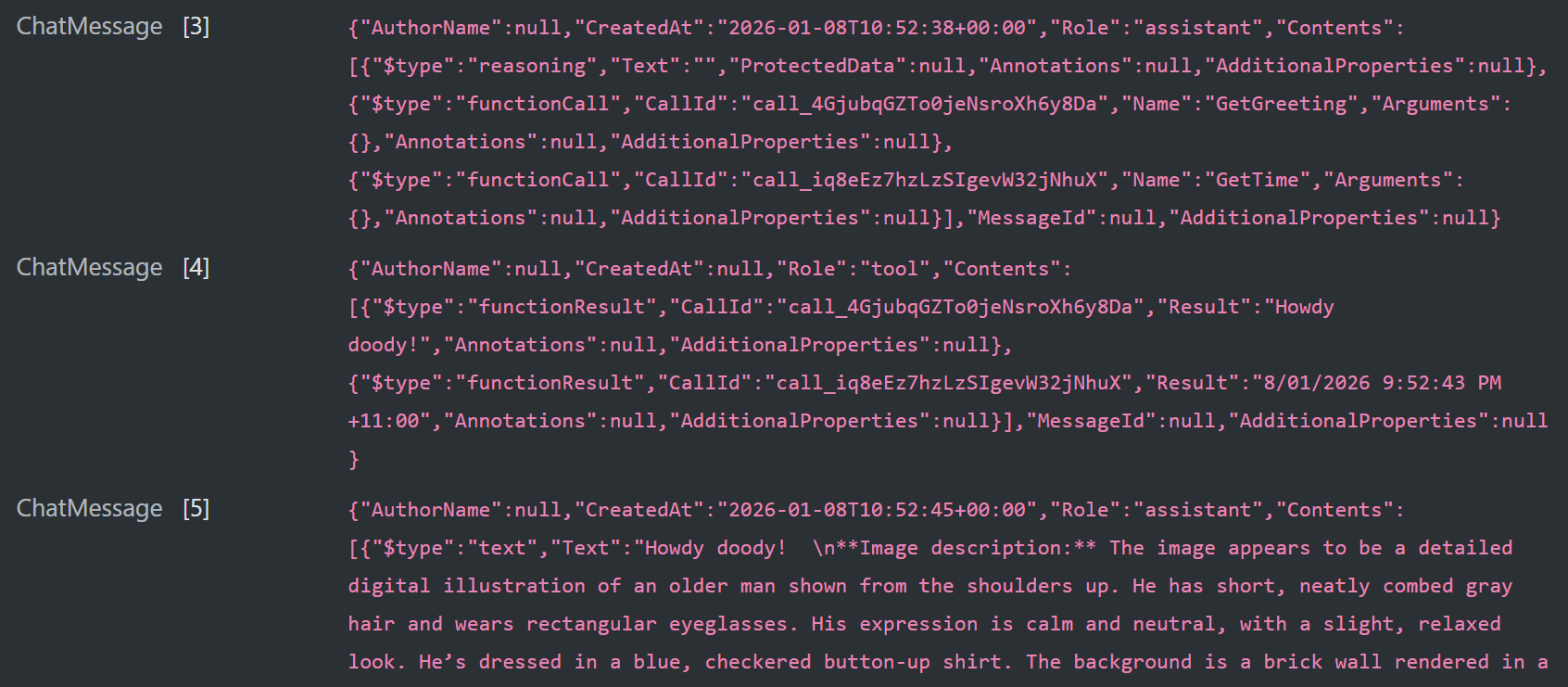
message[3] contains the outcome of the first tool call as an assistant message.
message[4] contains the outcome of the second tool call as an assistant message.
message[5] is the final text reply from the model with the requested description.
Chat Bot
For a non-conversation chat bot, send the full chat history on every run and use Chat Input Path to read it.
With AG-UI non-conversation runs, SharpOMatic creates agent.chat from the incoming AG-UI messages array for that run.
A common AG-UI setup is:
- User:
{{$agent.latestUserMessage.content}} - Chat Input Path:
agent.chat - Chat Output Path:
agent.chat
For a conversation-enabled chat bot, let the workflow own input.chat.
A common AG-UI setup is:
- User:
{{$agent.latestUserMessage.content}} - Chat Input Path:
input.chat - Chat Output Path:
input.chat
With that setup, the AG-UI controller exposes the latest user message under agent, and the Model Call node writes the resulting user and assistant ChatMessage history to input.chat for the next turn.