Transfers
Transfers let you export and import workflows, evaluations, connectors, models, and library assets between environments. Library asset folder names are included with exported assets. A typical usage is to export new or updated entities from your development environment. These can then be imported into downstream environments, such as staging or production, as part of a release process. Another use is to back up your entities for safekeeping. It is recommended to store important data in a source control system for change and version tracking.
Export
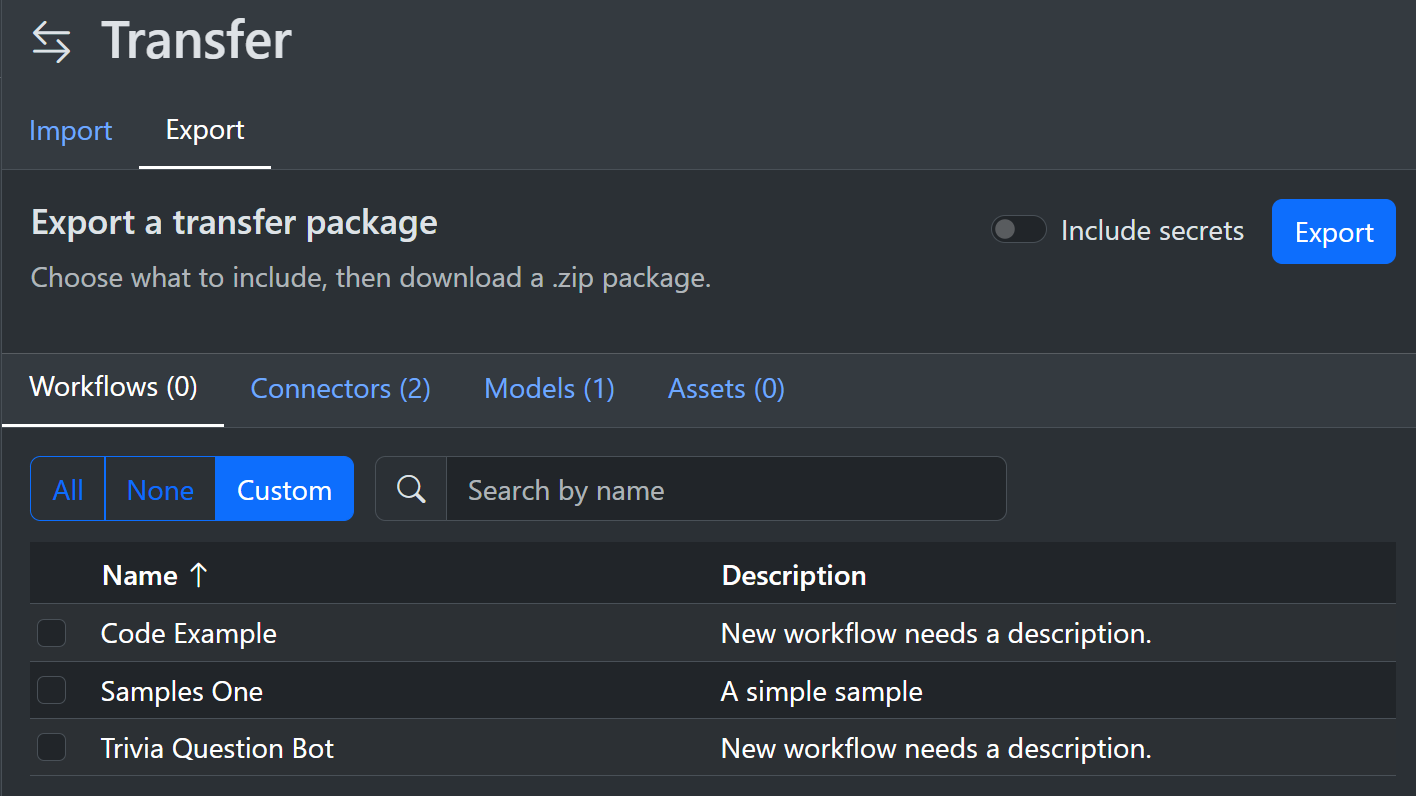
Exports are generated from the editor Transfer page.
You can select all items or choose specific workflows, evaluations, connectors, models, and library assets.
The export is a zip package with one JSON file for each exported item.
The zip uses folders such as workflows, connectors, models, evaluations, and assets to make the package easy to browse, but import behavior is based on the JSON content rather than the file path.
Each JSON file uses a standard envelope with schemaVersion, type, exportedUtc, and payload fields.
The supported envelope types are workflow, connector, model, evaluation, and asset.
By default, secrets are not exported to prevent accidental exposure of sensitive data.
You can use the checkbox to override this and export secrets as well.
If selected assets belong to folders, the folder name is included in each asset JSON file.
Import
Imports are performed by uploading a transfer package in the editor.
Workflows, connectors, models, library asset folders, and library assets are imported with their stored metadata so existing content can be matched and updated where possible.
Evaluations are imported as new instances with new identifiers to avoid collisions when importing into the same system.
This means existing evaluation runs remain intact and linked to the original evaluation configuration.
When secrets are excluded from the export, existing secret values are preserved during import.
This allows you to manually set a secret in the staging or production environment without worrying that a new import will override that environment-specific data.
You can import a zip package or one or more standalone transfer JSON files.
Zip folder names and file names are ignored during import; the importer scans JSON files and uses each envelope's type field.
Evaluations
Evaluation transfer includes the full configuration:
- EvalConfig
- EvalGraders
- EvalColumns
- EvalRows
- EvalData
Evaluation transfer also includes terminal run result data:
- EvalRun
- EvalRunRow
- EvalRunRowGrader
- EvalRunGraderSummary
Runs that are still running at export time are skipped because they cannot be resumed in the target instance.
Assets
Transfers only include library assets. Run-scoped and conversation-scoped assets are excluded. Asset binaries are included as base64 content inside each asset transfer JSON file. When an imported asset specifies a folder name, the existing folder with that name is used or a new folder is created.
Program Setup
You must add the AddSharpOMaticTransfer call into your program setup for the transfer operations to work. If you forget this line then the editor will show the transfer option but all attempts to import or export will fail. In production you can add this transfer capability without the editor. You can then invoke the controller endpoints directly. For example, to import the latest versions of your workflows, models, assets etc.
builder.Services.AddSharpOMaticTransfer();
When the package is registered, the transfer endpoints are exposed under /sharpomatic/api/transfer/....
If you override the SharpOMatic base path, pass the same base path into AddSharpOMaticTransfer(...) that you use for the editor and AG-UI registration.
Transfer JSON Format
Each exported file is self-describing:
{
  "schemaVersion": 1,
  "type": "workflow",
  "exportedUtc": "2026-05-30T00:00:00Z",
  "payload": {
    "id": "00000000-0000-0000-0000-000000000000",
    "version": 1,
    "name": "Example workflow"
  }
}
Workflow and asset payloads can include folderName.
On import, missing workflow or library asset folders are created automatically.
Asset payloads also include mediaType, sizeBytes, and contentBase64.
Controller
Import
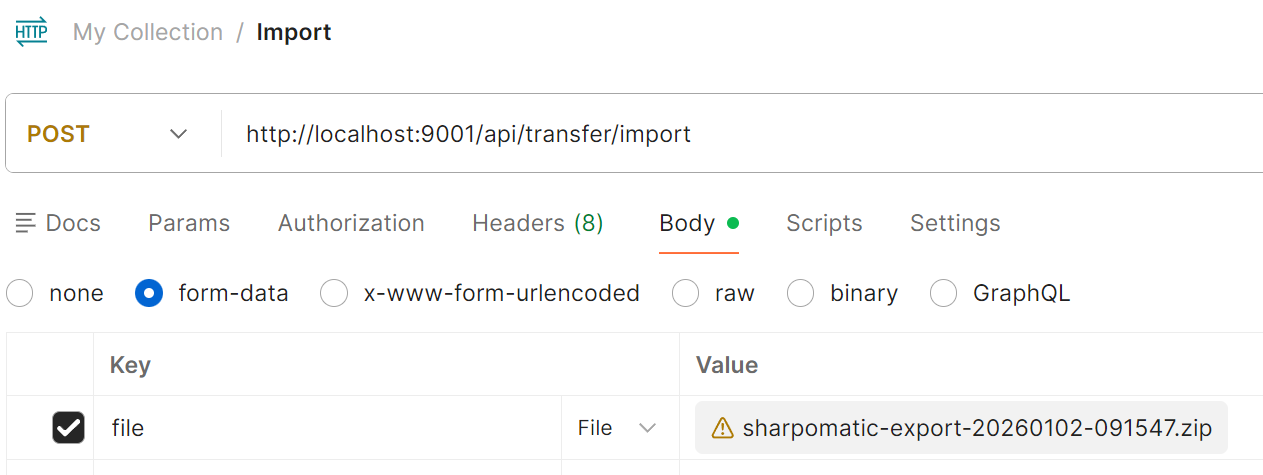
You can use a utility such as POSTMAN to invoke the import endpoint.
The demo server zip import endpoint is https://localhost:9001/sharpomatic/api/transfer/import/zip and also exposes HTTP on http://localhost:9000/sharpomatic/api/transfer/import/zip.
Use multipart form data with a file field for zip packages.
For one or more standalone JSON files, use /sharpomatic/api/transfer/import/files with multipart form data and files fields.
For a single raw JSON envelope, post application/json to /sharpomatic/api/transfer/import/json.
If some files in a multi-file import fail but others import successfully, the API returns HTTP 207 with aggregate counts and warning headers.
Import a zip transfer package:
curl -X POST "http://localhost:9000/sharpomatic/api/transfer/import/zip" \
  -F "file=@sharpomatic-export.zip"
Import one or more standalone JSON transfer files:
curl -X POST "http://localhost:9000/sharpomatic/api/transfer/import/files" \
  -F "files=@workflow.json" \
  -F "files=@model.json" \
  -F "files=@asset.json"
Import a single raw JSON envelope:
curl -X POST "http://localhost:9000/sharpomatic/api/transfer/import/json" \
  -H "Content-Type: application/json" \
  --data-binary "@workflow.json"
Successful imports return aggregate counts:
{
  "workflowsImported": 1,
  "connectorsImported": 0,
  "modelsImported": 1,
  "evaluationsImported": 0,
  "evaluationRunsImported": 0,
  "assetsImported": 1
}
Export
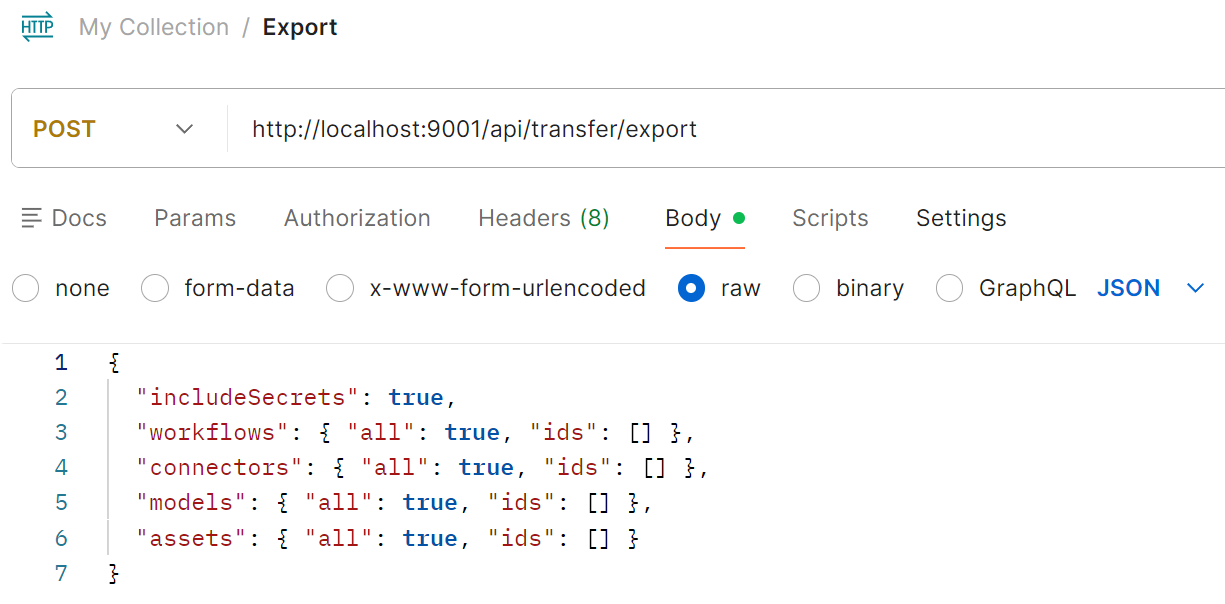
You can use a utility such as POSTMAN to invoke the export endpoint.
The body needs to be JSON that specifies the identifiers of the instances wanted, or set the all property to true.
The demo server export endpoint is https://localhost:9001/sharpomatic/api/transfer/export and also http://localhost:9000/sharpomatic/api/transfer/export.
Export all workflows and models, without secrets:
curl -X POST "http://localhost:9000/sharpomatic/api/transfer/export" \
  -H "Content-Type: application/json" \
  -o sharpomatic-export.zip \
  -d '{
    "includeSecrets": false,
    "workflows": { "all": true, "ids": [] },
    "models": { "all": true, "ids": [] }
  }'
Export selected entities:
curl -X POST "http://localhost:9000/sharpomatic/api/transfer/export" \
  -H "Content-Type: application/json" \
  -o selected-transfer.zip \
  -d '{
    "includeSecrets": false,
    "workflows": {
      "all": false,
      "ids": [ "00000000-0000-0000-0000-000000000001" ]
    },
    "connectors": {
      "all": false,
      "ids": [ "00000000-0000-0000-0000-000000000002" ]
    },
    "assets": {
      "all": false,
      "ids": [ "00000000-0000-0000-0000-000000000003" ]
    }
  }'