Tool Calling
If the model supports tool calling, this tab is available.
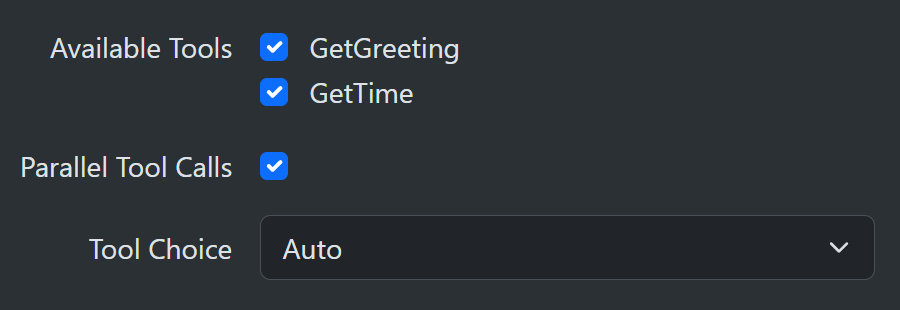
Available tools
During program setup, you can use the AddToolMethods extension to specify a list of C# static methods available for calling. Use a comma-separated list if you need to specify more than one method. You do not have to provide all the tools for every call. Use the checkbox in the tool table to select only those you want to make available during this model call. Each selected tool also has an AG-UI Output and a Context Path column, described below.
  builder.Services.AddSharpOMaticEngine()
     .AddToolMethods(ToolCalling.GetGreeting, ToolCalling.GetTime);
Example tool call implementations.
    namespace SharpOMatic.DemoServer;

    public static class ToolCalling
    {
      [Description("Get a friendly greeting.")]
      public static string GetGreeting(IServiceProvider services)
      {
        var context = services.GetRequiredService<ContextObject>();
        context.Set("GetGreetingCalled", true);
        return "Howdy doody!";
      }

      [Description("Get current time")]
      public static string GetTime(IServiceProvider services)
      {
        var context = services.GetRequiredService<ContextObject>();
        context.Set("GetTimeCalled", true);
        return DateTimeOffset.Now.ToString();
      }
    }
Tool methods can use System.ComponentModel.DisplayNameAttribute to expose a different name to the model than the C# method name. This is useful when keeping C# methods in PascalCase while presenting snake_case tool names to an LLM.
    [DisplayName("get_greeting")]
    [Description("Get a friendly greeting.")]
    public static string GetGreeting(IServiceProvider services)
    {
      return "Howdy doody!";
    }
Tools that share a name
The tool table lists the declaring Class alongside each tool, so two tools with the same name coming from different classes can be told apart. This lets one class provide a get_status intended for one model call node while another class provides its own get_status for a different node.
  builder.Services.AddSharpOMaticEngine()
     .AddToolMethods(EstimateTools.GetStatus, OrderTools.GetStatus);
The selection is stored as Class.Tool, so the example above records either EstimateTools.GetStatus or OrderTools.GetStatus. The class name is a configuration detail only; the model is always told the plain tool name, because model providers restrict function names to letters, digits, underscores and hyphens.
Two tools may share a tool name only if they come from different classes. Registering the same tool name twice from the same class is a setup error and fails at startup.
Because the model only ever sees the plain tool name, a single model call node cannot offer two tools that share a name. Selecting both is a configuration error and the model call fails with a message naming the two selections. Tools authored as lambdas or local functions have no useful class name, so they stay unqualified.
Existing workflows
Workflows saved before class names were recorded store the plain tool name, and keep working:
- A selection with no class name matches the first tool registered with that name, in
AddToolMethodsorder. - A selection with a class name must match that exact class.
- Per-tool AG-UI Output and Context Path settings are found whether they were saved against the plain name or the class qualified name.
Nothing is rewritten when a node is merely opened. The next time the tool selection on a node is changed, that node's selections and per-tool settings are saved in the class qualified form. Selections that match no registered tool are left untouched, so a workflow imported into a host that defines only some of the original tools does not lose the rest of its configuration.
Per-tool AG-UI output
Each selected tool has an AG-UI Output dropdown in the tool table. This controls only the tool-call stream events for that specific tool. It does not change whether the tool can execute, whether the model sees the result, or whether trace information is recorded.
The available modes are:
- Inherit: use the global Disable Tool Events setting from the model call AG-UI tab.
- Always: emit tool-call stream events for this tool even when Disable Tool Events is enabled.
- Never: suppress tool-call stream events for this tool even when Disable Tool Events is disabled.
When a tool is deselected, its per-tool AG-UI output setting is removed. Existing workflows that do not have per-tool settings behave as though every selected tool is set to Inherit.
Per-tool context path
Selecting a tool normally means it is provided to the model on every call. The Context Path column makes that conditional: leave it blank and the tool is always provided, or enter a context path and the boolean found there decides whether the tool is included in this particular call.
This lets a workflow open up capabilities progressively, for example only offering a submit_order tool once an earlier node has validated the cart.
| Context Path | Value at the path | Result |
|---|---|---|
| blank | not evaluated | the tool is provided |
| a path | true | the tool is provided |
| a path | false | the tool is not provided |
| a path | the path does not resolve | the model call fails |
| a path | the value is not a boolean | the model call fails |
An unresolvable path or a non-boolean value is treated as a configuration error rather than being silently ignored, so the mistake shows up in the run trace instead of quietly changing which tools the model can see.
Write the flag from an earlier node, for example an Edit node context entry of type Bool targeting flags.allowSubmitOrder.
When a tool is deselected, its context path is removed. Existing workflows that have no context paths behave exactly as before, with every selected tool provided.
If every selected tool is filtered out, the call is made with no tools at all. Note that the condition only controls whether the model is told about the tool; it is evaluated once when the model call starts, not before each individual tool invocation.
IServiceProvider
Notice that your methods can take IServiceProvider as a parameter. This allows you to get required data from the service provider. This example demonstrates how the workflow context for the model node can be accessed and modified. You could also request other interfaces relating to your own backend services.
Exiting a model call from a tool
Tool methods can exit the current model-call cycle without failing the workflow by throwing ModelCallExitException.
Use this when the tool discovers that the workflow must collect more input or perform another workflow step before the model can continue.
public static string AskForMissingInput(IServiceProvider services)
{
  var exit = new ContextObject();
  exit.Set("reason", "additional_input_required");

  throw new ModelCallExitException(exit, "agent.pendingInput");
}
SharpOMatic treats this exception as an intentional stop, not as a model-call error.
The model call still succeeds, writes the messages produced up to the tool call, closes any open stream events, and lets downstream workflow nodes decide how to continue.
When a ContextObject is provided, the model call writes it to the supplied context path.
The path defaults to exit, supports full context paths, and overwrites any existing value at that path.
The internal stop marker is not written as a tool result, so a later model call can continue from the saved chat history without seeing a fake tool response.
Parallel tool calls
Some model providers can make multiple tool call requests in a single model reply. This is called parallel tool calling and is more efficient than round-tripping for each individual tool call. Models offering this capability allow you to use this checkbox to turn it on or off.
Runtime stream events
When a model call performs tool calling, SharpOMatic now emits tool-call stream events as part of the live run output. These appear in the AG-UI tab and are also translated to AG-UI protocol events when using the AG-UI endpoint. If the node has Disable Tool Events enabled on its AG-UI tab, these protocol-style tool stream events are suppressed for that model call, but the tool-call trace information is still recorded. Per-tool AG-UI Output settings can override that global default for individual selected tools.
The tool-call stream lifecycle is:
ToolCallStartToolCallArgsToolCallEndToolCallResult
The trace viewer still records tool calls as information entries as well, so you keep both the protocol-friendly stream events and the trace summary.
Tool choice
There are only two options for this dropdown.
-
None: the list of tools is provided, but the model is not allowed to invoke any. This is useful if you want the model to create a plan of what to do but not actually execute that plan. In that case, it needs to know the availability and signature of the tools to plan.
-
Auto: the model can decide to invoke zero or more tools.